
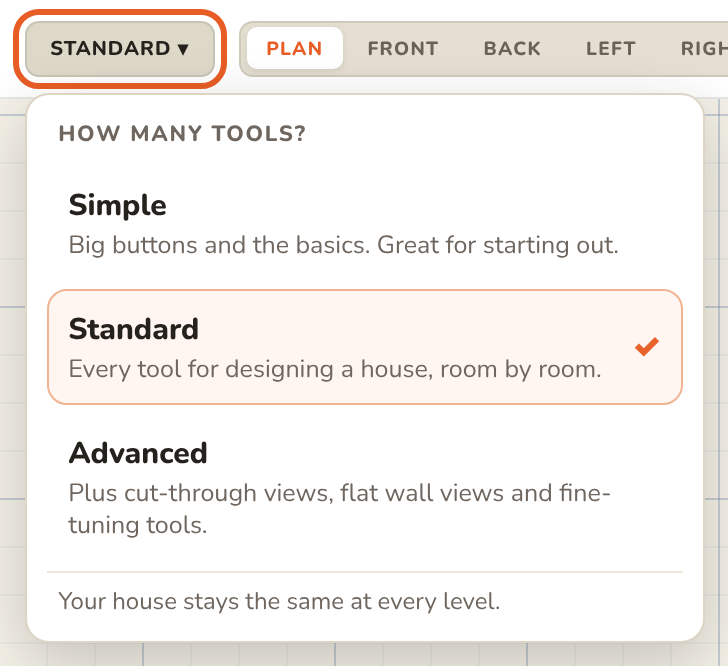
You can pick how many tools you see. There are three levels.
| Level | What you get |
|---|---|
| Simple | Big buttons and the basics. Great for starting out. |
| Standard | Every tool for designing a house, room by room. |
| Advanced | Extra tools for detailed building drawings. |
Standard and Advanced differ by a few things. These live in Advanced, and Simple and Standard hide them:
- Modify: the 🛠️ button on the left rail with Cut back, Stretch, Make a corner and Cut a wall in two. See Modify: fix up walls.
- Mirror: the tile in Modify, and the Mirror button above picked things (Copy stays at every level). See Mirror.
- Custom roof shapes: the Auto and Custom switch and the Draw / Edit roof shapes button on the 3D Roof tab. The automatic roof stays. See Roofs.
- Yard height: the Yard tab in Floors & Layers. See Yard height and sloping yards.
- Custom Label: the ✏️ Room Label button on the left rail, for typing your own names. The Room Name tiles stay in Standard. See Room names.
Where one of these would be, you see a line like "Yard height is in Advanced." with a Switch button. Click it to move to Advanced and carry on. At Standard, 🔍 Find also shows an In Advanced result when you type one of them: see Find.
Your house stays exactly the same at every level. Changing the level never changes your drawing.
Pick a level
Click the level button in the bar at the top, next to the project name. It says Simple, Standard or Advanced, with a small arrow. A menu called How many tools? opens. Click a level to pick it. The button only shows in Plan view.
On a phone in Simple, the bar at the top right is just Undo and ⋯ More. Tap More for New, Save, Snapshot, Projects, Select, Pan, Redo and the Tools switch, to change level. (In Standard and Advanced the level button also stays at the top.)
The app remembers your level on this device. Standard is what you get the first time, unless you used Simple Mode before: then you stay in Simple. It's a choice for the device, not for your house, so a house you open or share looks the same at every level.
Simple: the tool wheel
Simple puts the tools on one big wheel. It's the same drawing tools, with fewer buttons on the screen. The wheel has six slices. Click one to open its panel of tools.
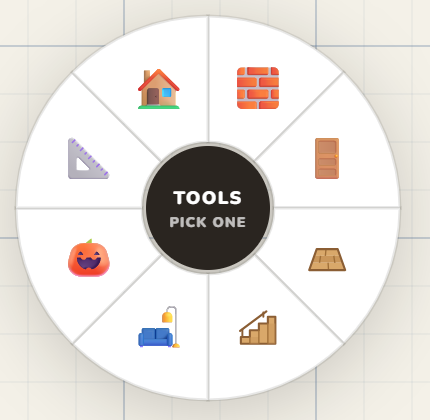
| Slice | What's in it |
|---|---|
| Walls | Wall tools: outside and inside |
| Doors | Doors and windows together |
| Floors | Floor fills and rugs |
| Stairs | Straight, L-shaped and U-shaped |
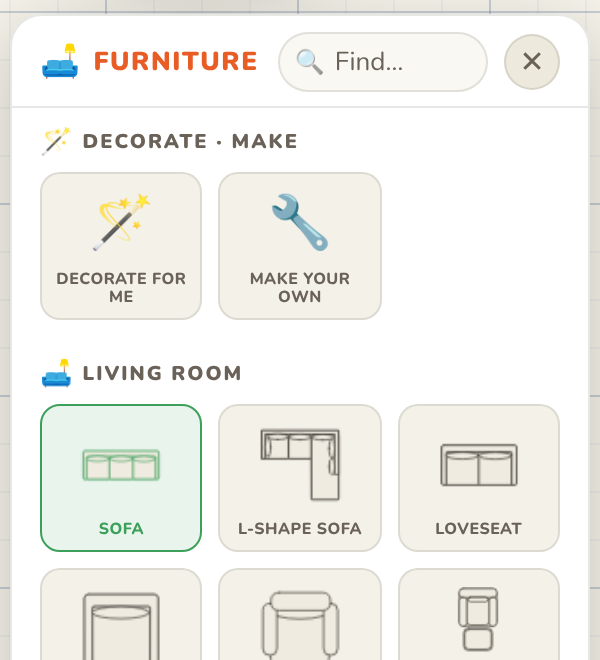
| Furniture | Every piece of furniture, grouped by room, with a Find box in its title bar and Decorate for me at the top. Outdoor is one of the rooms in here, and has the patios, decks, driveways and pools |
| Levels | Add Floor, Add Basement, and a button for each floor |
At Halloween and in the winter holidays, one more slice appears for the seasonal pieces, and goes away again when the season ends.
Click a tool to pick it, then use it on the plan the same as in Standard. The panel stays open so you can switch tools. Click its ✕ to close it.
The essentials panel
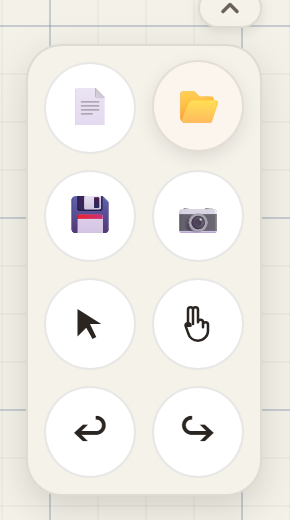
At the right (on a phone, see Pick a level above: it's Undo and More instead) is a small panel. It starts folded to a strip with Select, Pan, Undo and Redo. Click the arrow on the strip to open it up. Then it also has:
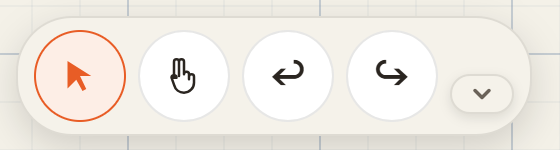
📄 New, 📂 Projects, 💾 Save, and 📷 Snapshot.
In the bottom right corner, the round color button opens the color picker (on a phone too).
The bar at the bottom is still there. It has the options for the tool you're using, the zoom, and ? for Help.
What Simple doesn't have
- No Mirror button. Mirror is a longer, step-by-step tool, so it's in Advanced: see Mirror.
- No Room Label button and no room-name tiles. Room name tiles are in Standard and typing your own name (Room Label) is in Advanced: see Room names. Names already on your plan stay.
- No Measure. The measuring tools and the Man, Woman, Boy and Girl for scale are in Standard. Measurements and people already on your plan stay.
- No Make your own. Building your own furniture is in Standard: see Make your own. Pieces you already made stay in your Furniture panel.
- No Sheets. Printable drawing pages are in Standard: see Sheets and printing.
- No Layers.
- No Add to Museum button on the panel. Add to My Museum from the 3D view instead: see Snapshots and My Museum.
You can use the keyboard in Simple Mode: Ctrl+Z, and Ctrl+C, V and D after picking two or more things with a box. See Copy, paste, duplicate.
Good to know
- 3D and the flat views look the same at every level. The level only changes Plan view. Switch to Plan to get the wheel back.
- Pro mode doesn't have the level button. Pro mode shows every tool.
If something goes wrong
I can't find the level button. You're in 3D or a flat view. Click Plan first.
I can't find a tool I used in Standard. Open the Furniture slice for all furniture, including the outdoor pieces, Doors for doors and windows, and Levels for floors.