
The quickest way to learn a move is to watch it happen on your own plan. That's what the cards in Help do.
Open them
Click the ? in the bar at the bottom, next to the zoom buttons. A window called How To Build opens, with the line "Tap a card to learn — hit Try It to see it in action."

The cards
The cards come in four groups. Scroll down to see them all.
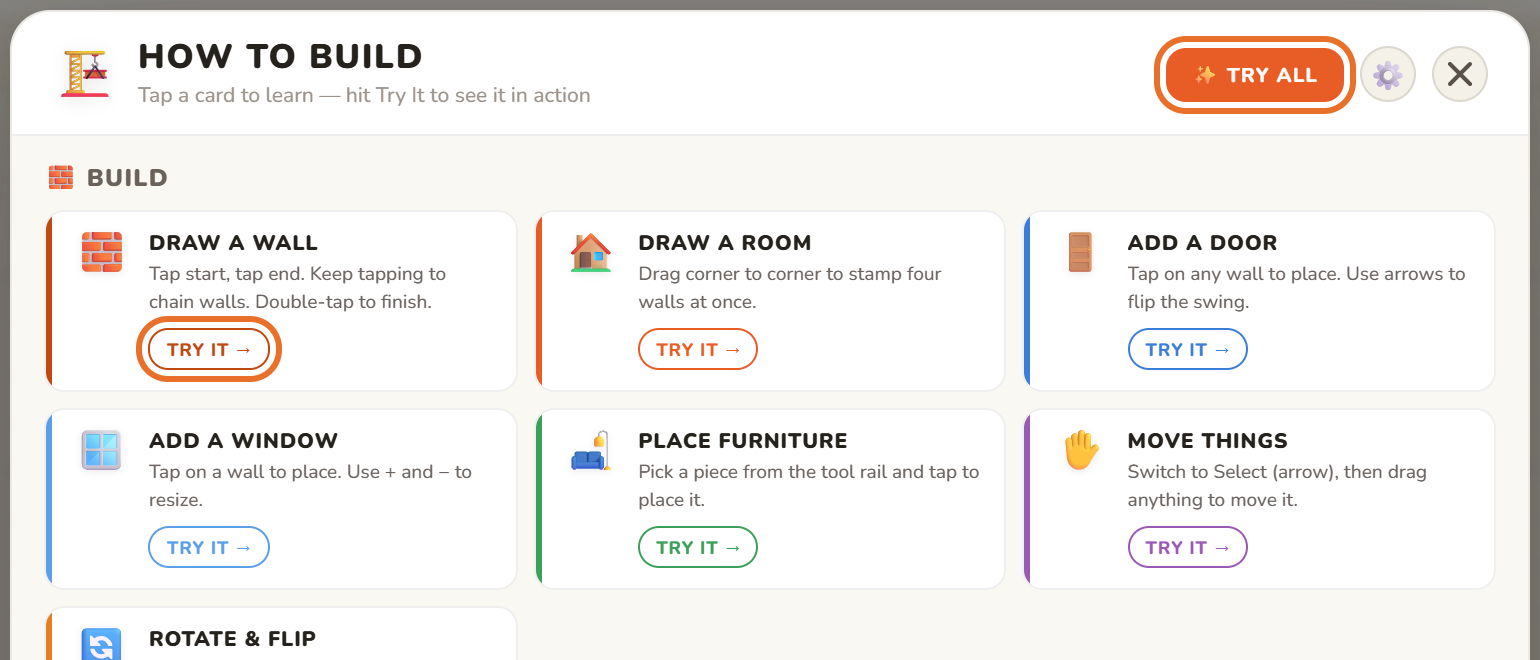
| Group | Cards | Button |
|---|---|---|
| 🧱 Build | Draw a Wall, Draw a Room, Add a Door, Add a Window, Place Furniture, Move Things, Rotate & Flip | Try It |
| 🎨 Make it yours | Fill a Floor, Add a Ceiling, Half Walls, Curved Walls, Paint Walls, Hanging Lights, Frame Your Art, Decorate for Me | Show me |
| 👀 See it | See it in 3D, Walk Inside, Peek Inside, Night & Weather, Build Upstairs | Show me |
| 💾 Keep it | Undo & Redo, Save Your Work, My Museum | Show me |
Use Try It
- Click Try It → on a card. Help closes.
- Watch the ghost hand. The app picks the tool for you, opens its palette, and a white hand shows the move on your plan: where to click, where to drag.
- Do it yourself. The Place Furniture card is different. After the hand shows you, it waits for you to click on the plan to place the piece yourself.
Use Show me
Click Show me → on a card. Help closes.
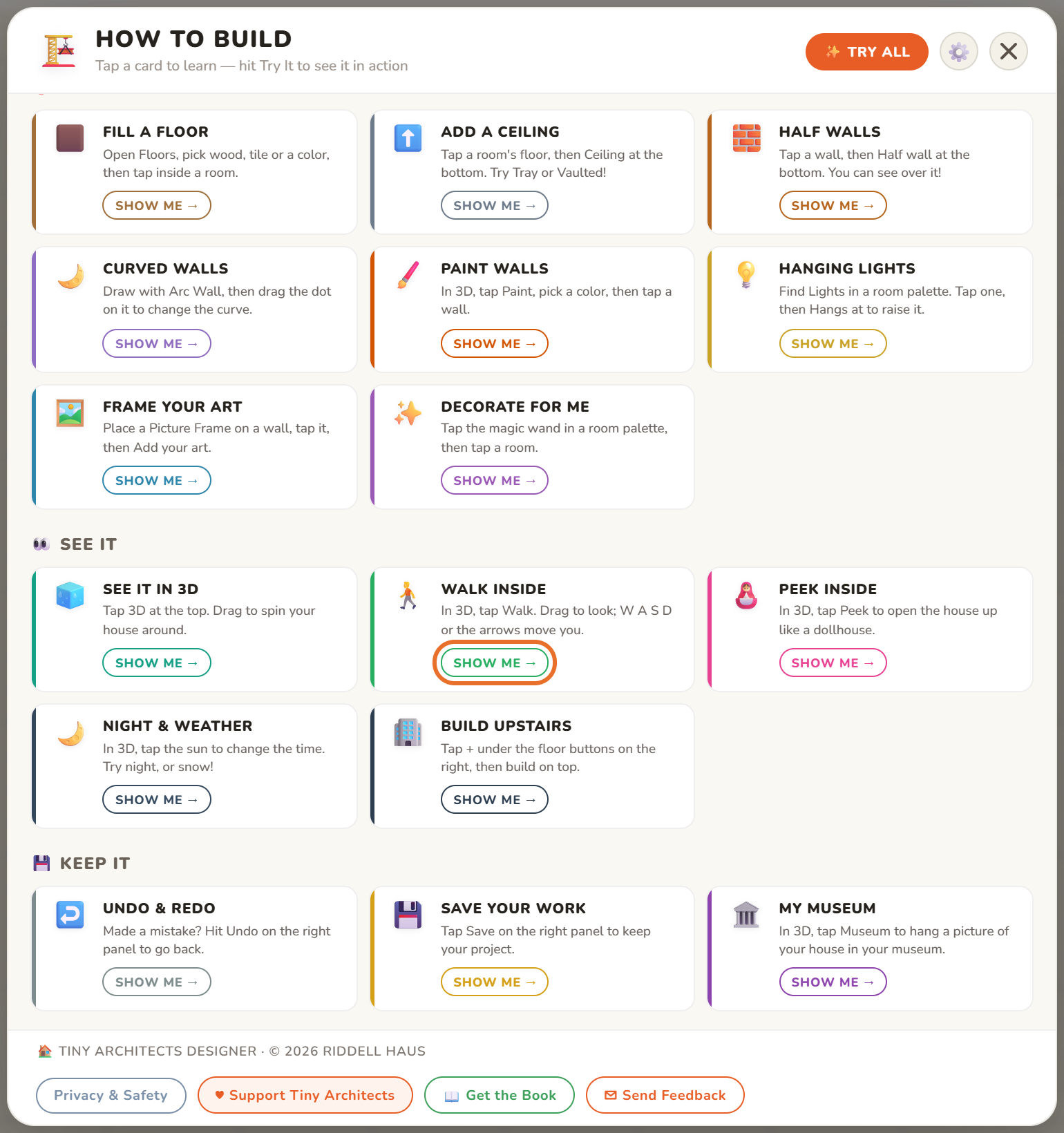
Look for the glow. The app takes you where you need to be and the button you need glows orange. A dark bubble at the bottom of the screen says what to do.
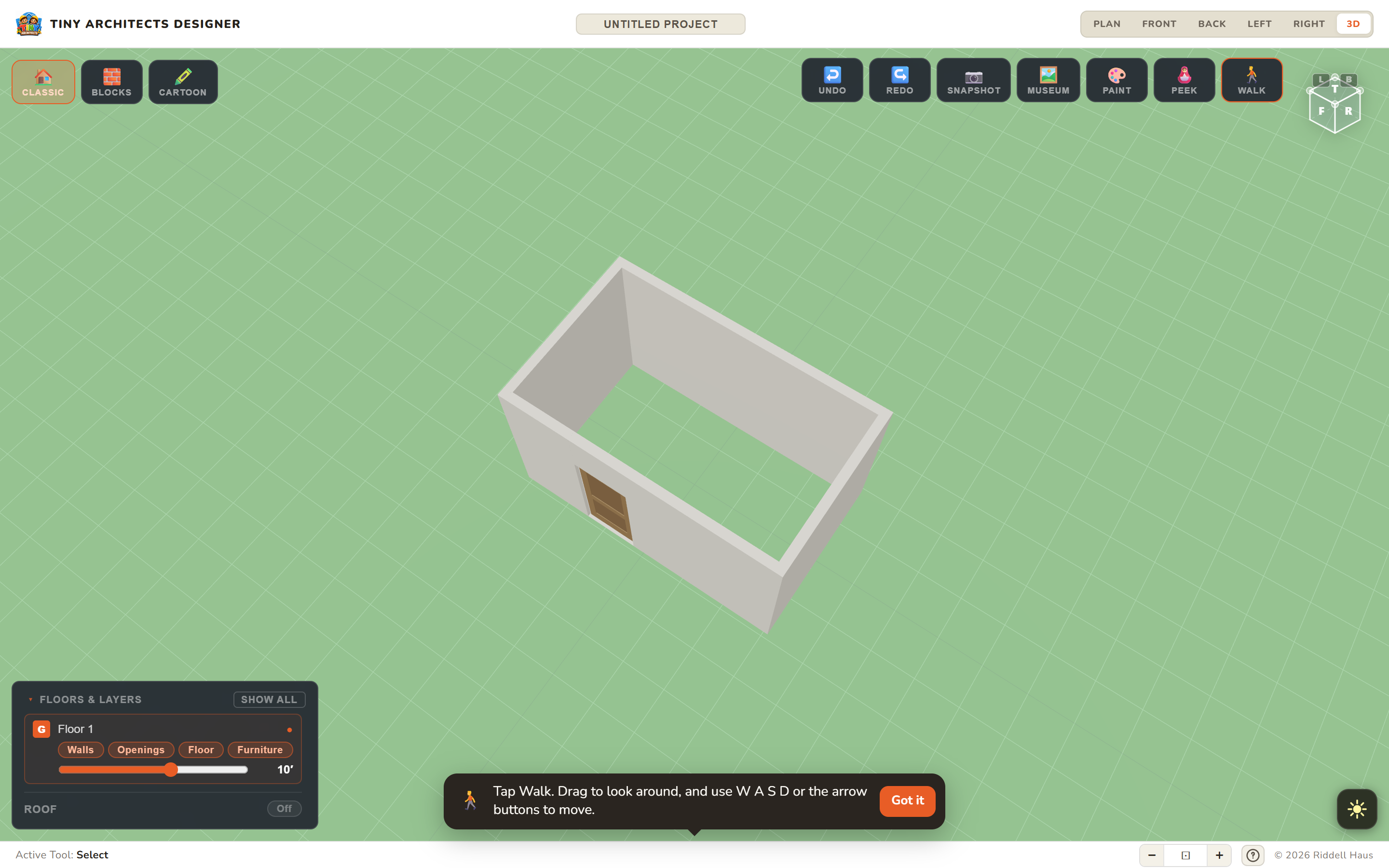
Tap the glowing button, or Got it to close the bubble.
Some examples:
- Add a Ceiling picks your biggest room's floor for you, so the Ceiling button appears at the bottom, glowing. If you haven't filled a room with a floor yet, it gets the wood floor ready instead and tells you to fill a room first.
- Walk Inside switches to 3D and makes the Walk button glow.
- Decorate for Me picks the magic wand, so you only have to tap a room.
Try All
Click ✨ Try All at the top of the window to play every ghost-hand demo, one after another. Only the 🧱 Build cards are in the tour.
Tips the first time
The first time you pick something new, a bubble tells you what it can do, and the button it's talking about glows. For example, the first time you click a room's floor, it tells you the room can have a ceiling. Each tip shows only once.
To turn tips off, or see them all again, open ⚙️ Settings, then Tool Settings, and use Tips and See tips again.
Good to know
- Some demos need something to show. Add a Door and Add a Window need a wall to point at. If there isn't one, you'll see "Draw a wall first, then try adding a door!" with Draw a Wall → and Dismiss. Move Things and Rotate & Flip need a piece of furniture. If there isn't one, they're skipped.
- If your device is set to reduce motion, the hand doesn't play.
- Settings is in here too. The ⚙️ button at the top of the window opens Settings, with About, Tool Settings and Privacy & Safety. To go back to the cards, click the ← arrow.
If something goes wrong
The hand didn't do anything. The demo may need a wall or a piece of furniture first. Draw one and try the card again.