
Both take a picture of what's on the screen. They're different in where the picture goes.
| Snapshot 📷 | Add to Museum 🖼️ | |
|---|---|---|
| Goes to | A .png file in your downloads | My Museum, inside the app |
| Use it to | Print it, send it, put it in a project | Keep a gallery of your best views |
Take a snapshot
Get the view you want. In Plan view the picture is of the floor you're on. In 3D, or in Front, Back, Left or Right, it's what you see.
Click 📷 Snapshot. In Plan view it's on the right rail. In 3D and the flat views it's in the row of buttons on the 3D panel.
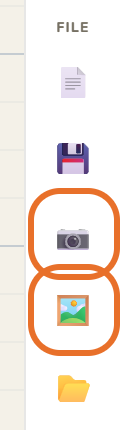
You get a PNG file named after your project and the view, like My House - 3D.png or My House - Floor 1.png.
In Simple mode, the 📷 button is in the panel on the right. Click the small arrow at the top of the panel to open it.
Save to My Museum
Get the view you want. Plan, 3D, or any of the flat views.
Click 🖼️ Add to Museum. It's on the right rail, next to Snapshot. In 3D and the flat views it's the + Museum button in the 3D panel (and in Walk). The button flashes a ✓ for a moment, and a note says Added to My Museum. Click Open it in the note to go and see it.
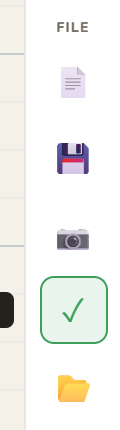
Nothing downloads, and nothing seems to move. The picture is in your museum now.
While you're walking through the house, there's a MUSEUM button on the screen too. It saves what you're looking at, and it says SAVED! when it's done. See Walk and Peek.
Visit My Museum
Open it any of these ways:
Click 📂 Projects and then 🖼️ My Museum › at the bottom of the list.
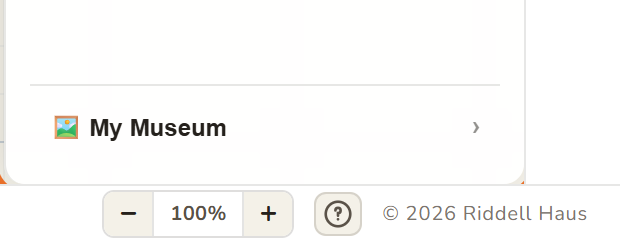
Open Help (the ? at the bottom), click the ⚙️ Settings button, open the Tool Settings tab, and click Open… next to My Museum.
The museum is a long hall, and your pictures hang on the wall. You walk down it:
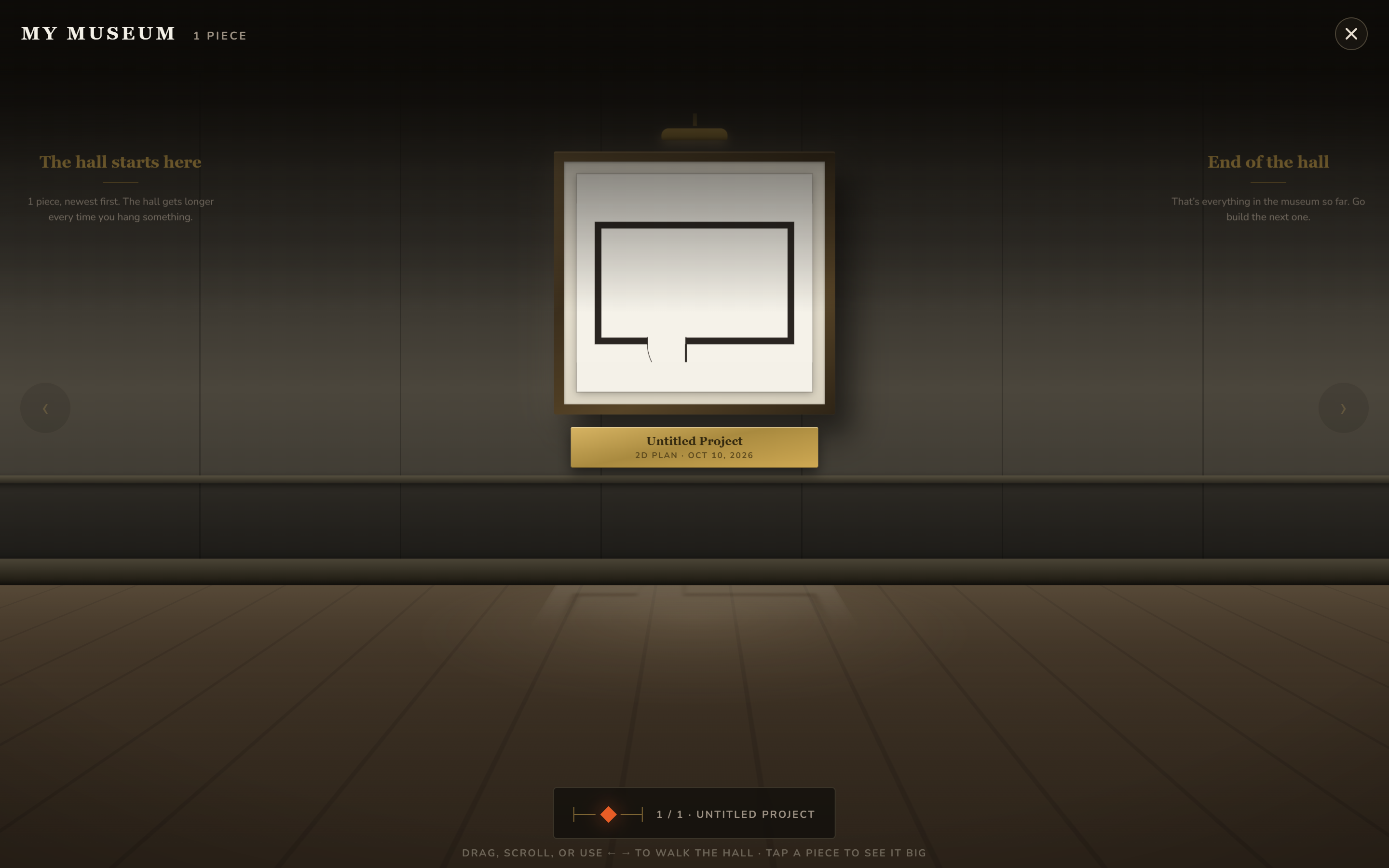
- Drag the hall, or use the mouse wheel or trackpad to scroll along it.
- Press ← and → to go one picture at a time. Home and End go to the first and last.
- Click a picture to step up to it.
Stepping up shows the picture large, with a small plaque: the project's name, the view, and the date. From there:
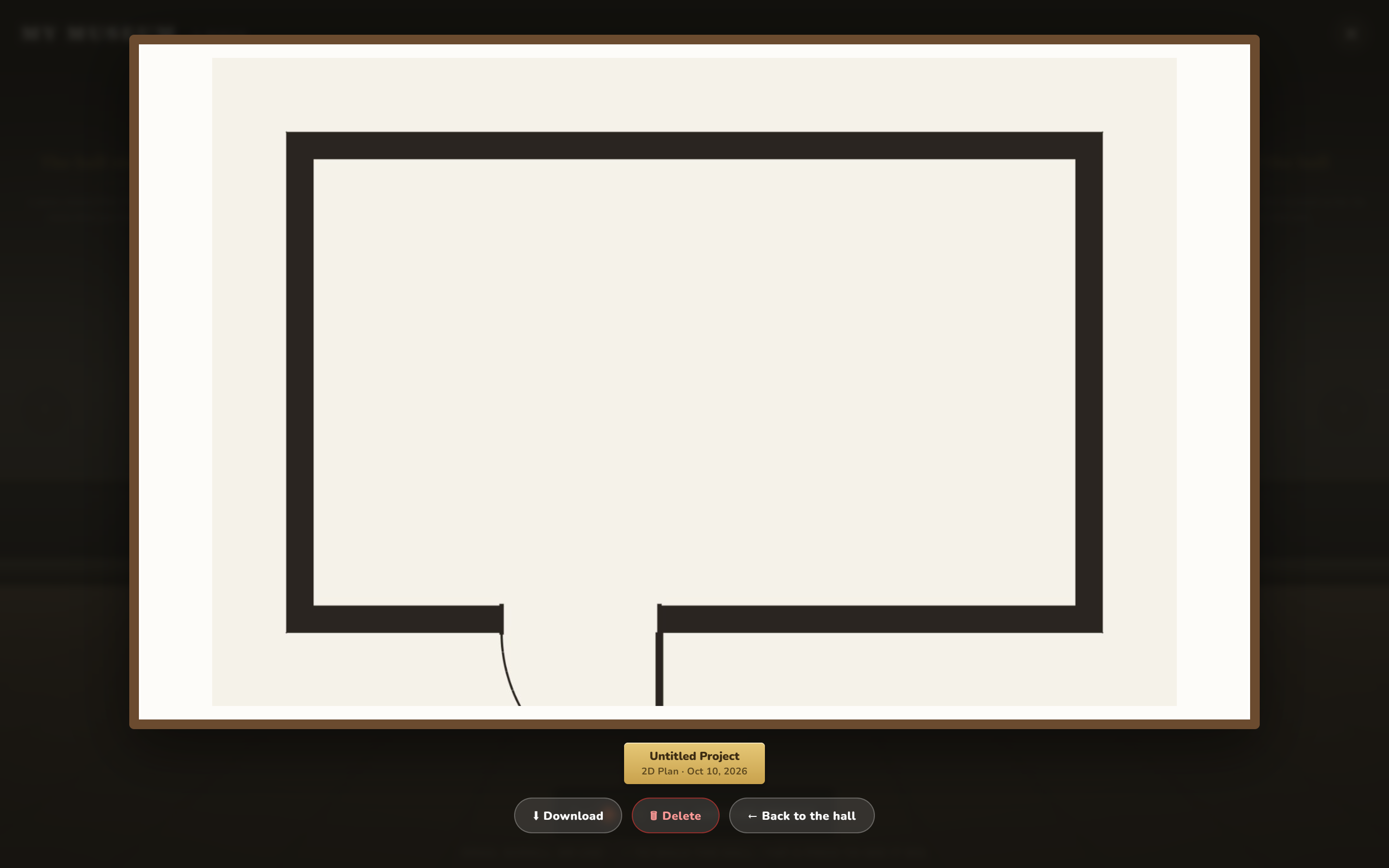
- ⬇ Download saves the picture to your computer.
- 🗑 Delete asks you to confirm with Delete forever, or Keep.
- ← Back to the hall goes back to walking. So does the Esc key.
Close the museum with the ✕ in the top corner.
Good to know
- Pictures stay, even if the project goes. If you delete the project a picture came from, the picture is still in your museum.
- It's kept in this browser. Pictures aren't in your .tad file, so they don't come with the house to another computer. Use Download for that. See Saving your work.
- The museum holds 100 pictures. When it's full, the app asks if you want to save the new one and remove the oldest. It never removes one without asking.
- A new museum is empty. It says "The hall is waiting for its first piece."
If something goes wrong
"Could not capture this view. Try again." The picture couldn't be taken. Click the button again.
I don't see Add to Museum on the right rail. The right rail is only in Plan view in Classic mode. In Simple mode, add pictures to the museum from 3D.