
A template is a real floor plan you can start from, from a small studio apartment to a big house with a garage. There are two ways to use one:
- ✏️ Trace it puts the plan on your page as a faded picture. You draw the walls over it yourself. It's the best way to learn how a house fits together.
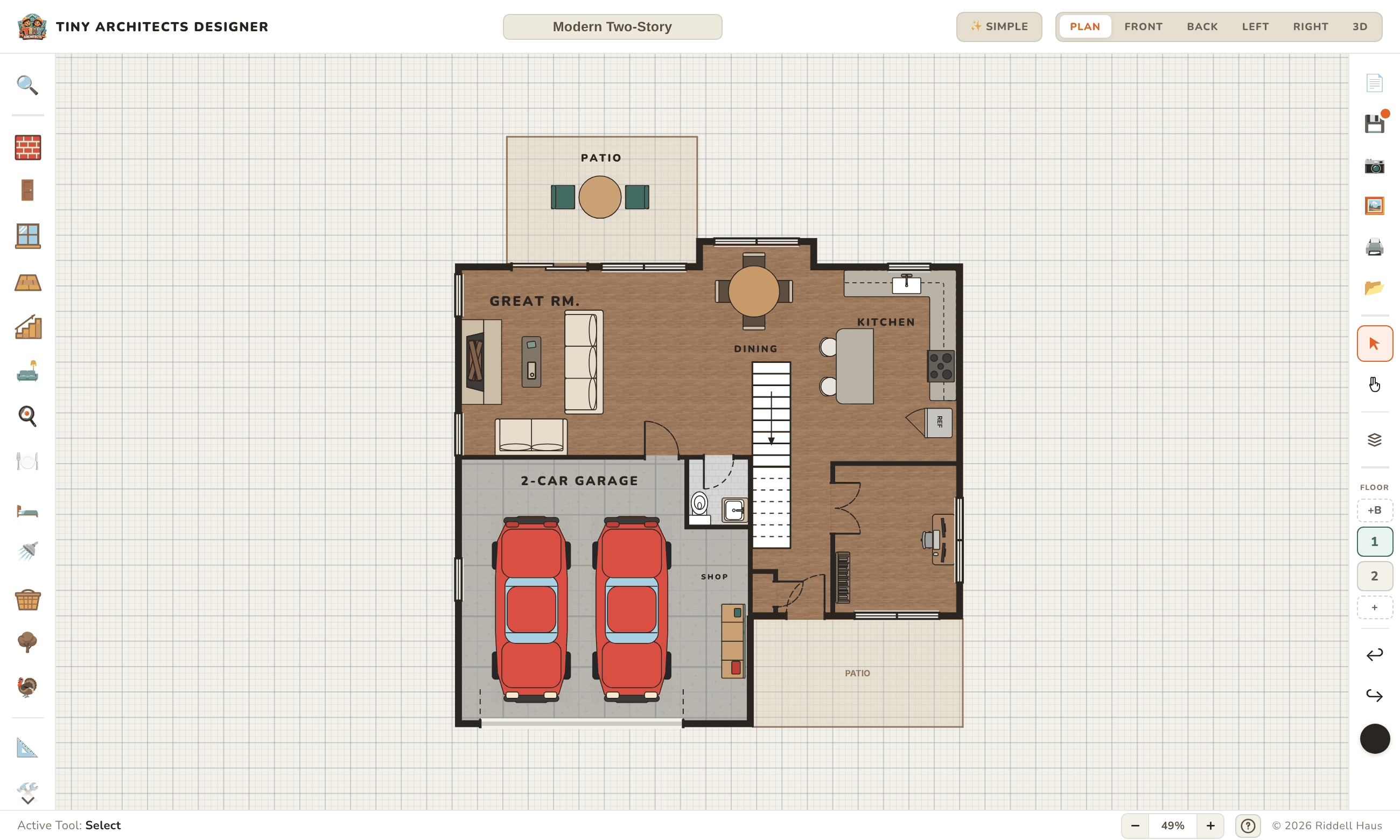
- 🏠 Open the house gives you the whole house, already built, with its walls, doors, windows and furniture. Change anything you like.
Either way you get a brand-new project. Your other houses are never changed.
Pick a template
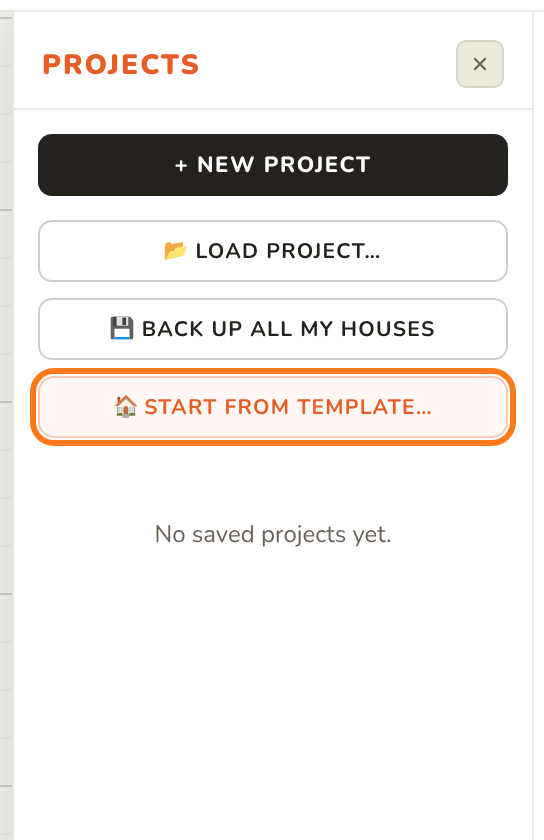
Click 📂 Projects on the right rail. On a phone, tap ⋯ More first.
Click 🏠 Template. The Start from a Template window opens.
Pick a level, if you like. The buttons at the top show All, ⭐ Easy, ⭐⭐ Medium or ⭐⭐⭐ Hard plans.
Find a house you like. Each card has a picture, its name, its level, and a line saying what's in it and about how big it is. A house with an upstairs says "· 2 floors".
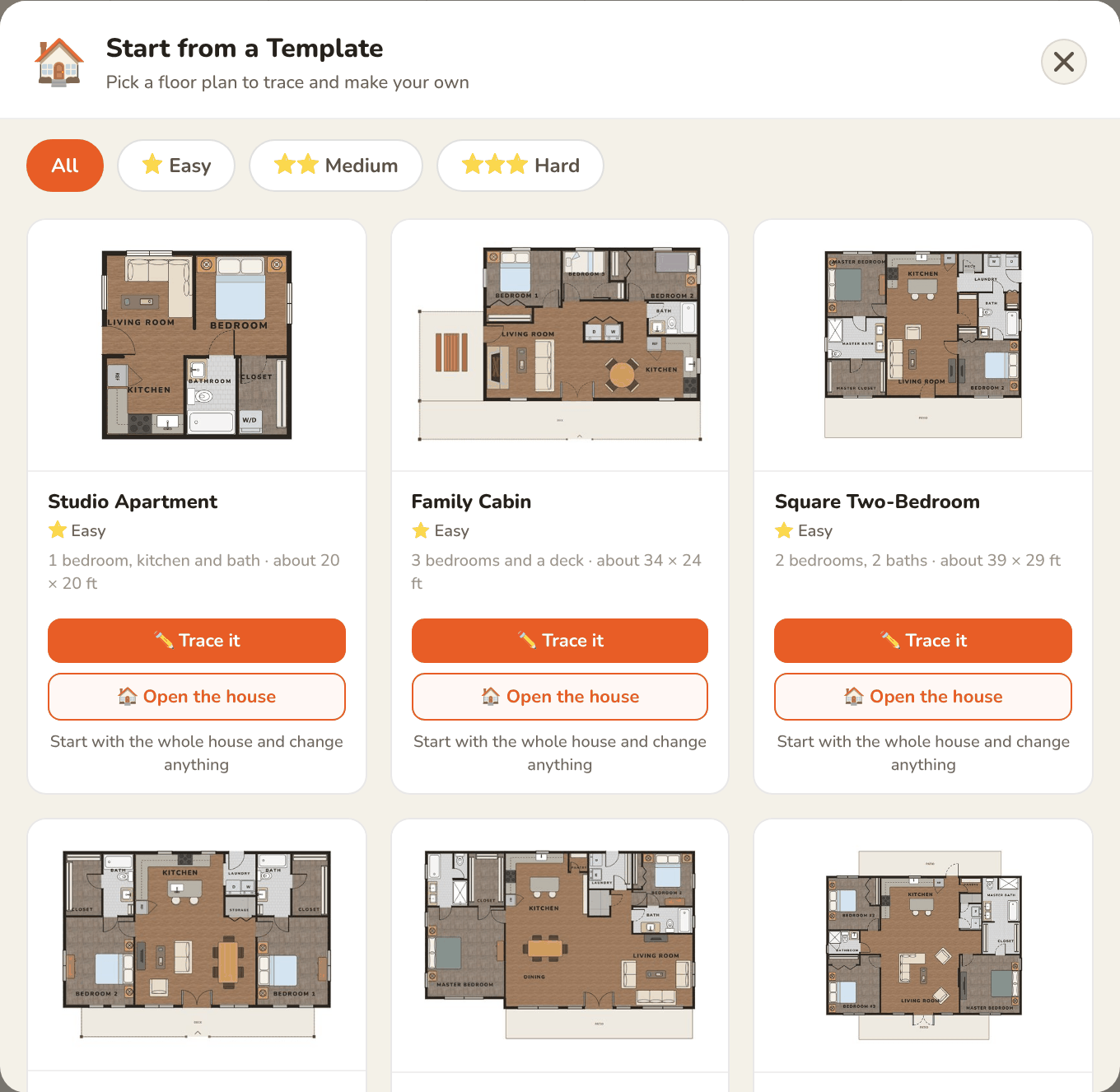
Click ✏️ Trace it or 🏠 Open the house on that card.
You can also get here from + New Project: the box that asks "Start a new project?" has a 🏠 Or start from a template… button.
Trace it
The plan appears faded on your page, the right size, and the app zooms out to show all of it.
- Pick a wall tool and draw over the plan's walls. Snap is set to 6″ for a template, so a wall's end lands right on the walls in the picture. See Exterior and interior walls and House Outline.
- Add the doors and windows where the plan shows them.
- Look at it in 3D whenever you like. The faded picture only shows on the plan.
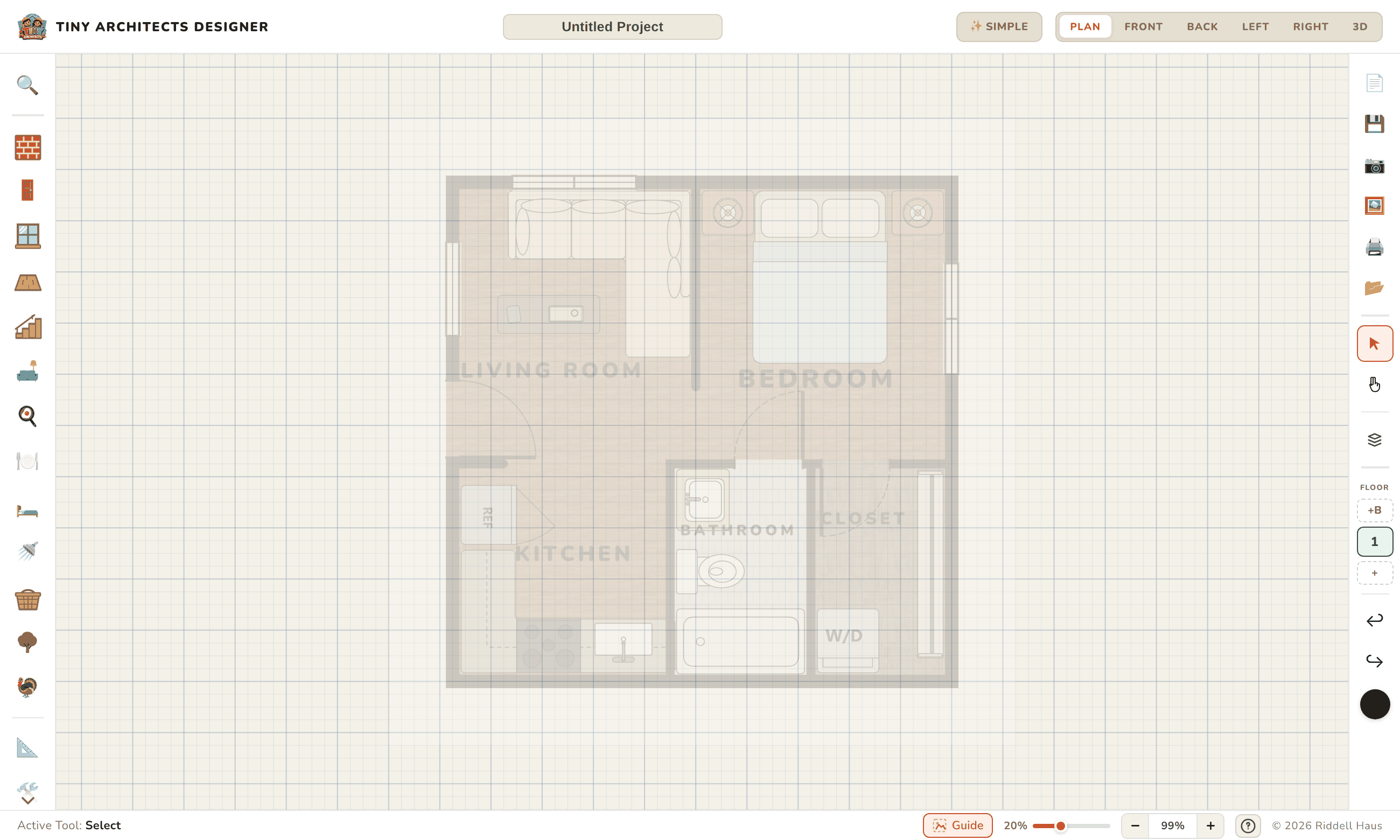
The Guide button in the bar at the bottom shows or hides the picture. The slider beside it makes the picture lighter or darker.
For a house with an upstairs, each floor gets its own picture. Switch floors with the floor buttons and trace that floor too. The pictures line up, so the stairs and walls match. See Adding floors.
Open the house
The whole house opens on the plan, named after the template. There's no faded picture. It's a normal house now: move walls, swap furniture, paint it, add a roof. It saves itself into Projects once you change something.
Good to know
- It saves itself. A template house is a new project. It goes into Projects a few seconds after you change something, and you can click Save any time. See Saving your work.
- You can't undo back to the template. Undo starts fresh, so the first thing it takes back is your first change.
- Templates come with the app. You can't make your own template in the app yet.
If something goes wrong
"Couldn't open that house." The house didn't load. Your current house is left as it was. Try again, or pick ✏️ Trace it on the same card.
The faded picture is gone. Click Guide in the bar at the bottom. It only shows in Plan view, on a floor that has a picture.
My traced walls don't sit on the picture's walls. Make sure Snap is on in the bar at the bottom.