
Click 3D in the bar at the top. You're looking at the house from outside, and you can look at it from anywhere.
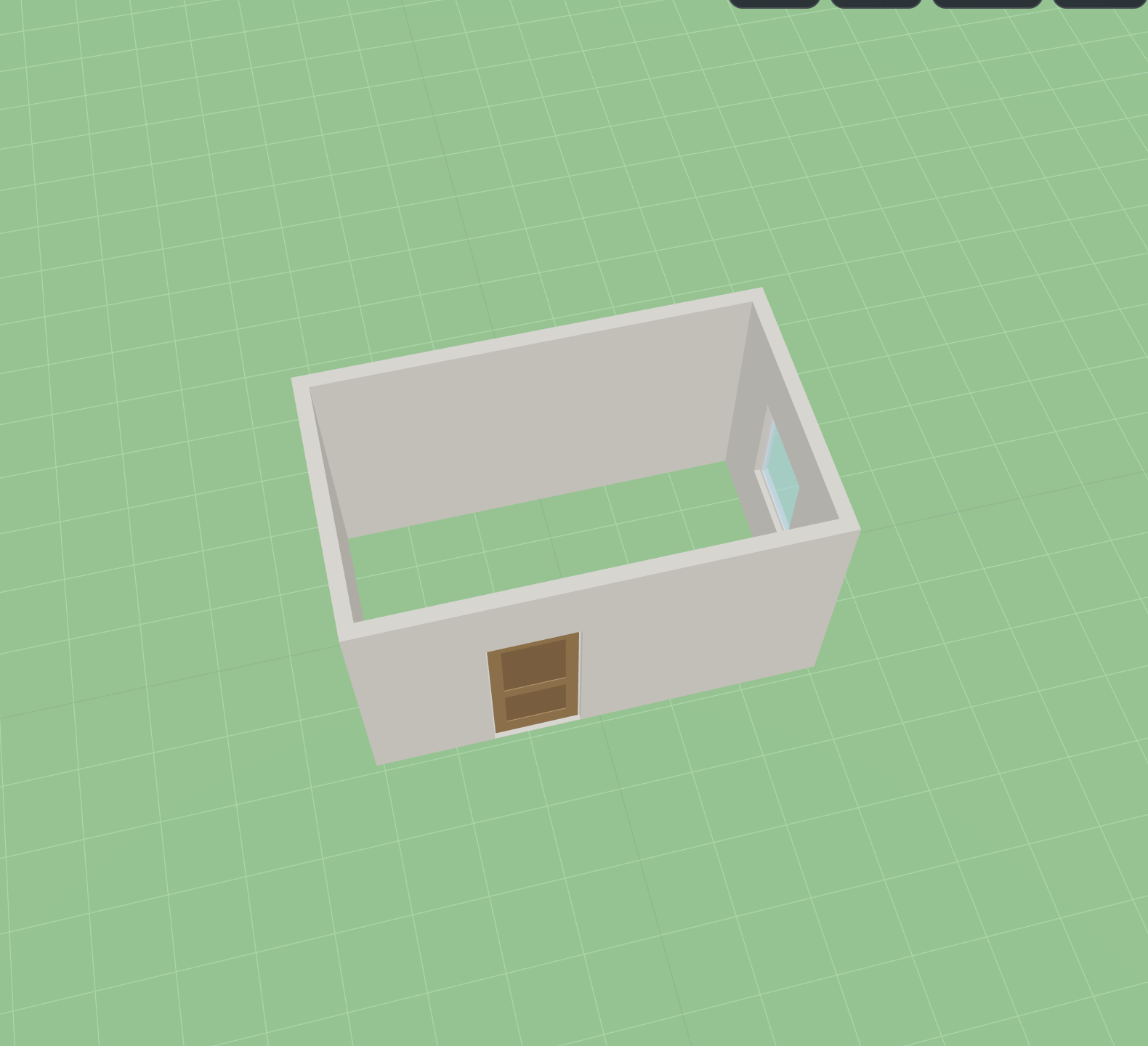
Spin and zoom
| To | Do this |
|---|---|
| Spin around the house | Drag. On a tablet, drag with one finger. |
| Tip it higher or lower | Drag up or down. You can't go under the ground. |
| Slide sideways | Hold Shift and drag. |
| Zoom | Mouse wheel, pinch with two fingers, or the − and + buttons in the bar at the bottom. |
| Start over | Click ⊡, between − and +. It puts the camera back at the standard angle and centers the house. |

Jump to a side
The little cube in the top right corner does the quick jumps. Click part of it and the camera swings around to look from there. You stay in 3D.
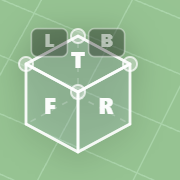
- T looks straight down from above.
- F, R, B and L look at the front, right, back and left of the house.
- The four dots on the top corners look from that corner.
Flat views: Front, Back, Left, Right
The bar at the top also has Front, Back, Left and Right. They are different from the cube. They show one side of the house flat on, the way an architect draws it. Each says "front elevation" (and so on) in small letters on the screen.

In these views, dragging slides the picture instead of spinning it. You can still zoom. Click 3D to get the spinning house back.
Change the look
The three buttons at the top left change how the house is drawn. They don't change the house.
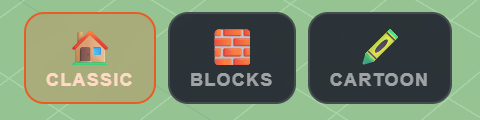
- Classic is the normal look.
- Blocks and Cartoon are two other looks to try.
Good to know
- There's a row of buttons in every view. Undo, Redo, Snapshot and + Museum show in 3D and in the flat views. Peek and Walk are only in 3D. See Snapshots and My Museum and Walk and Peek.
- Peek closes if you pick Blocks or one of the flat views. See Walk and Peek.
- The sun and the sky have their own controls in 3D: see Sun and weather.
If something goes wrong
I can't see the house. Click ⊡ to bring the camera back.
Dragging slides the house instead of spinning it. You're in Front, Back, Left or Right. Click 3D.