
In 3D you can choose what your walls are made of. Paint one wall at a time, or pick a whole-house look and the whole outside changes in one tap: the walls, the roof color, the doors and the window frames.
Open Paint
- Click 3D in the bar at the top. (Paint also works in the Front, Back, Left and Right views.)
- Click 🎨 Paint in the row of buttons. The 🎨 Paint palette opens, and the button now says Done.
While Paint is open, the Floors & Layers panel is hidden. Click Done to close Paint and get it back.
Change the whole outside with a look
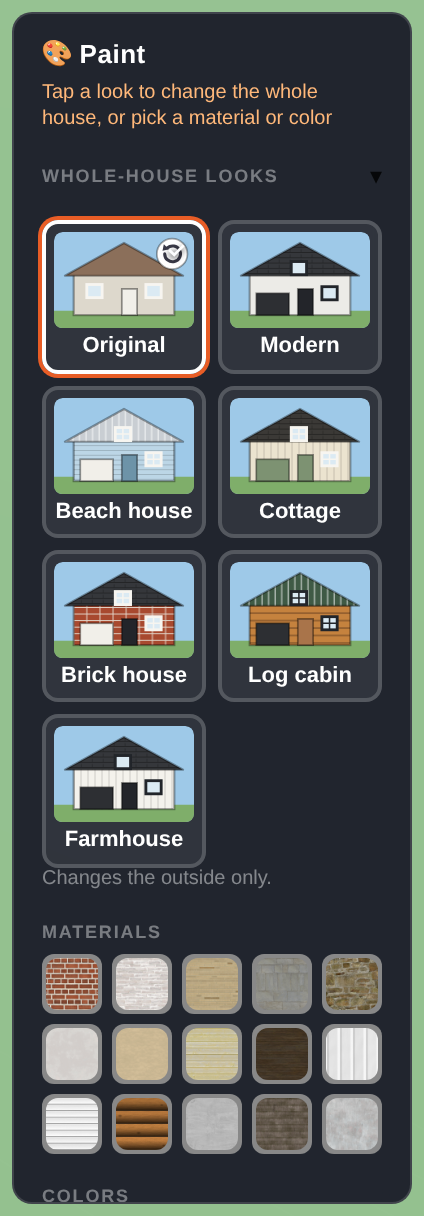
The first row, Whole-house looks, has a little house picture for each look:
| Look | The outside walls | The roof |
|---|---|---|
| Modern | White stucco | Asphalt (dark gray) shingles |
| Beach house | Light blue lap siding | Silver metal |
| Cottage | Cream board and batten | Graphite (dark gray) shingles |
| Brick house | Red brick | Asphalt (dark gray) shingles |
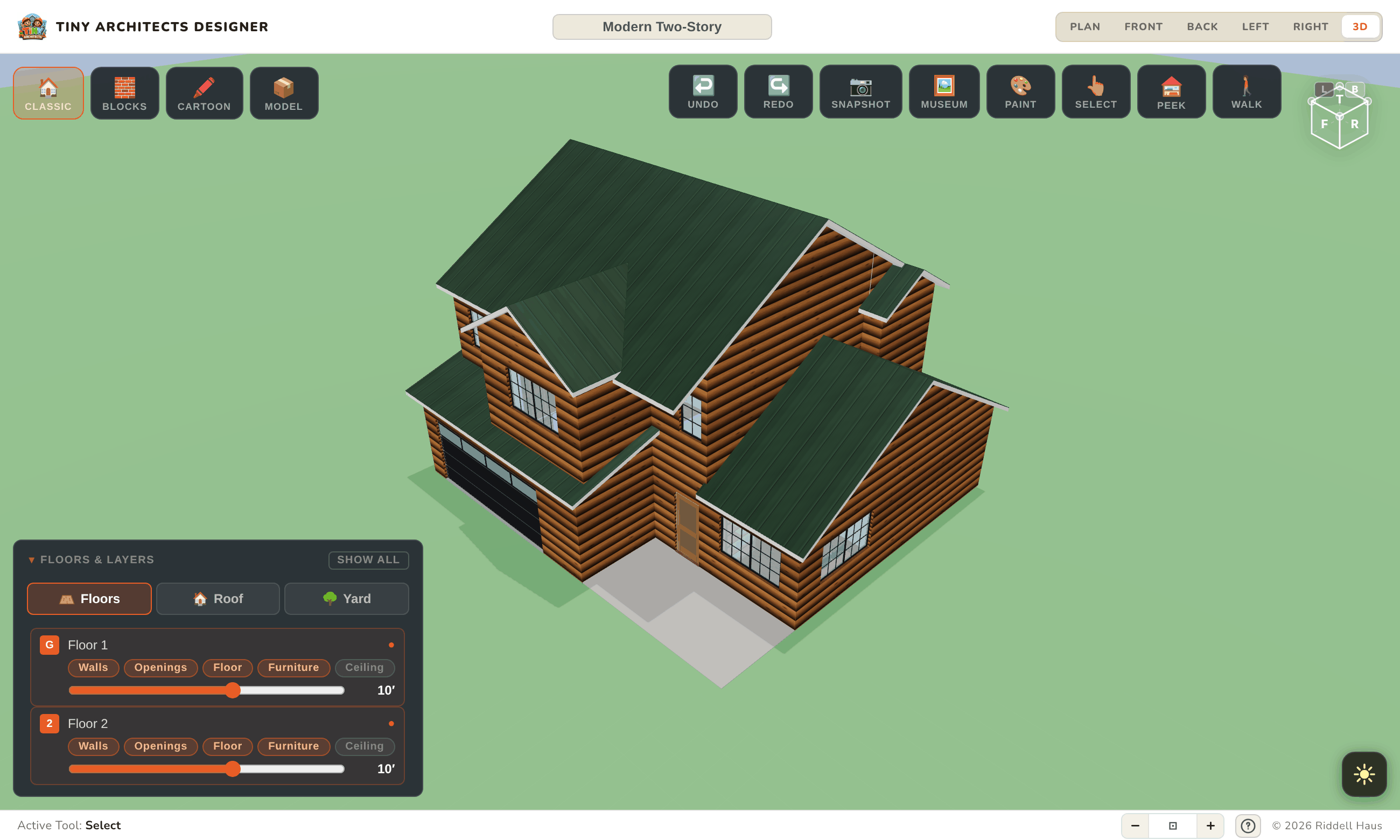
| Log cabin | Logs | Forest green metal |
| Farmhouse | White board and batten | Asphalt (dark gray) shingles |
Tap a look and the house changes right away. The look you're wearing is marked. You don't need to tap a wall: a look paints every outside wall on every floor at once, gable ends included.
What a look changes, and what it doesn't
A look changes only the outside:
- Every outside wall, on every floor.
- The roof: its color, and whether it's shingles or metal.
- Doors in outside walls get the look's colors (the front door, the garage door and glass doors each have their own).
- Windows in outside walls get the look's frame color, and grid bars on or off.
- Shutters change color, but only on windows that already have shutters. A look never adds new ones.
It doesn't change the inside of any wall, the floors, the furniture or the white trim. It doesn't turn the roof on either: if the roof is off, turn it on in the Roof tab to see its new color. See Roofs.
A look replaces paint you put on an outside wall by hand.
Go back: Original
The first card, Original, puts the outside back the way it was before you tapped your first look. If you closed the app in between, Original gives the plain house instead: no paint on the outside, white doors and the usual frames and roof.
Undo and the roof
A look is one Undo step. Undo puts the walls, doors and windows back, but not the roof color. Change the roof color yourself in the Roof tab, or tap Original.
Tap Whole-house looks to fold the row away if you don't need it. It stays folded next time.
Paint one wall
- Pick a material or a color. Materials has bricks, stone, stucco, wood, siding, logs, concrete, shingle and metal. Colors has twenty flat paints. The one you picked shows at the bottom of the palette.
- Tap a wall. Each side of a wall is painted on its own, so you can paint the outside red brick and leave the inside white. Turn the house to reach the side you want.
- Keep tapping to paint more walls with the same thing. Tap ✕ next to your pick to stop painting.
Dragging still spins the house, so you can turn it between taps. Each wall you paint is one Undo step.
Paint only colors walls. If you tap the roof, a note says the roof color is in Floors & Layers, with an Open Roof tab button. Floors get their look from the Floors palette on the plan: see Floor fills.
Good to know
- Paint shows in 3D and on Sheets. The plan stays plain.
- Paint is saved with the house, like everything else you draw.
- Board & Batten and Lap Siding take a color. In the looks they come in cream, white or blue.
If something goes wrong
Tapping a wall does nothing. Pick a material or a color first. The palette says "Tap a wall surface to paint it" once something is picked.
I painted the wrong side of the wall. Undo, turn the house so you're looking at the other side, and tap again.
The roof didn't change color. Is the roof on? Look in the Roof tab of Floors & Layers.