
Fill a floor
Open Floors and pick a floor: Color Fill, or a look from Wood-look (Wood Floor, Dark Wood, Herringbone, Vinyl Plank), Stone & Tile (Tile Floor, Subway Tile, Checkerboard, Porcelain Tile, Hex Tile, Natural Stone, Marble), Concrete & Garage (Concrete Floor, Epoxy, Pavers) or Carpet & Cork (Carpet, Light Carpet, Cork).
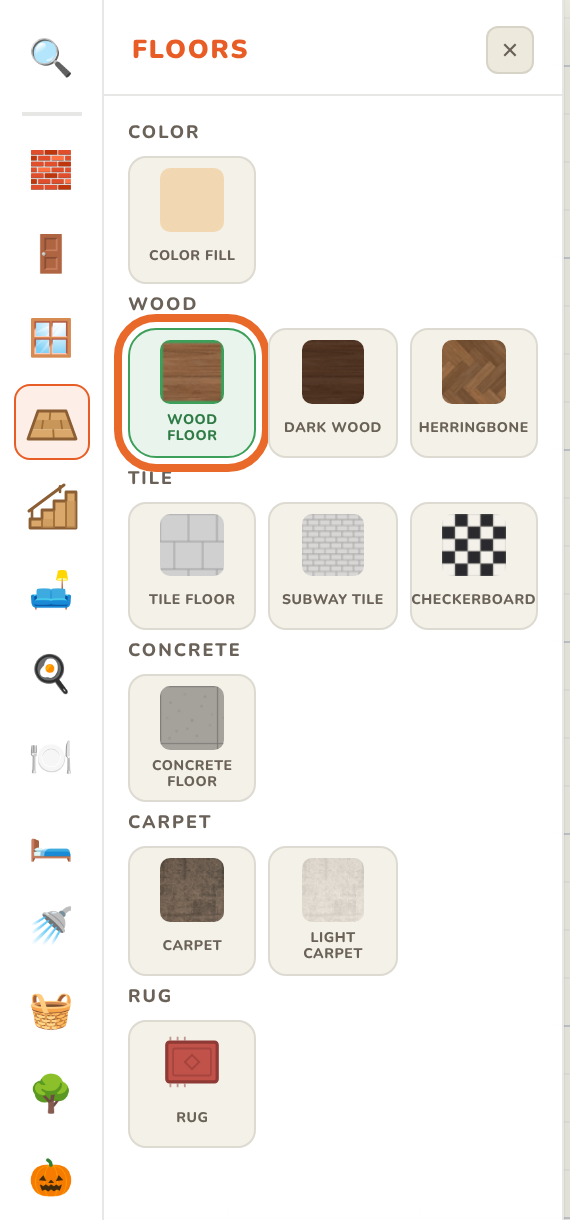
Click inside a room. The floor fills, right up to the walls.
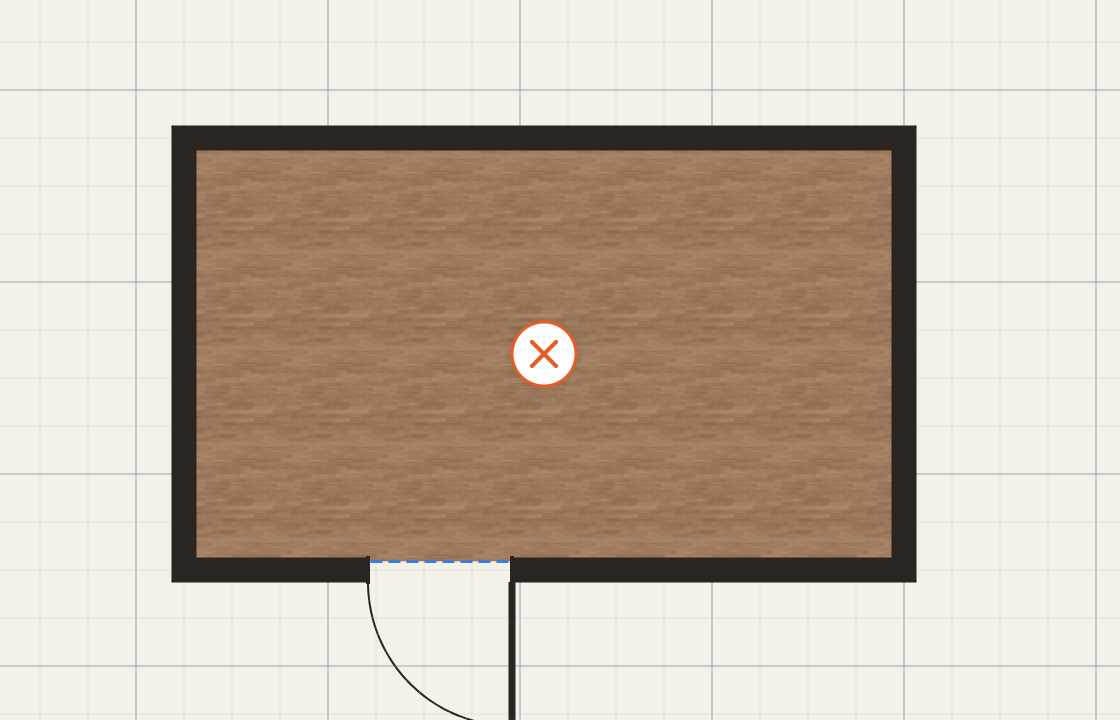
Color Fill uses your pen color. Pick it first with the round color button at the bottom of the right rail. The other floors bring their own look.

Nothing happened? The room has to be closed in by walls on every side. If a wall stops just short of another, a note says "The walls don't meet here" and shows the gap in green. Tap Close it, then tap the room again to fill it. Otherwise, look for a gap at a corner, and drag the wall's end onto the next wall to close it.
Change it after
A floor is selected as soon as you fill it. Click it later with the Select tool to select it again. The bar at the bottom then shows:
Floor (the slider, called Opacity in older versions): how solid the floor looks, from 10% to 100%. New floors start at 75%.
Ceiling and 💡 Lights: see Ceilings and lights.

To remove a floor, select it and press Delete.
With a room's floor selected, the bar has a Baseboard button for white trim round the room (3D only), and All rooms to do every room on the floor at once. The trim follows the walls if you move them, and leaves gaps at doors.
A rug instead
A floor fill covers the whole room, wall to wall. To put a rug on part of the floor, use Rugs.