
Most furniture is the same: pick it, drop it, then move or turn it. A few pieces do a little more. Click the piece and look at the bar at the bottom of the plan. If it has an extra control, it shows up there.
Chairs on a table
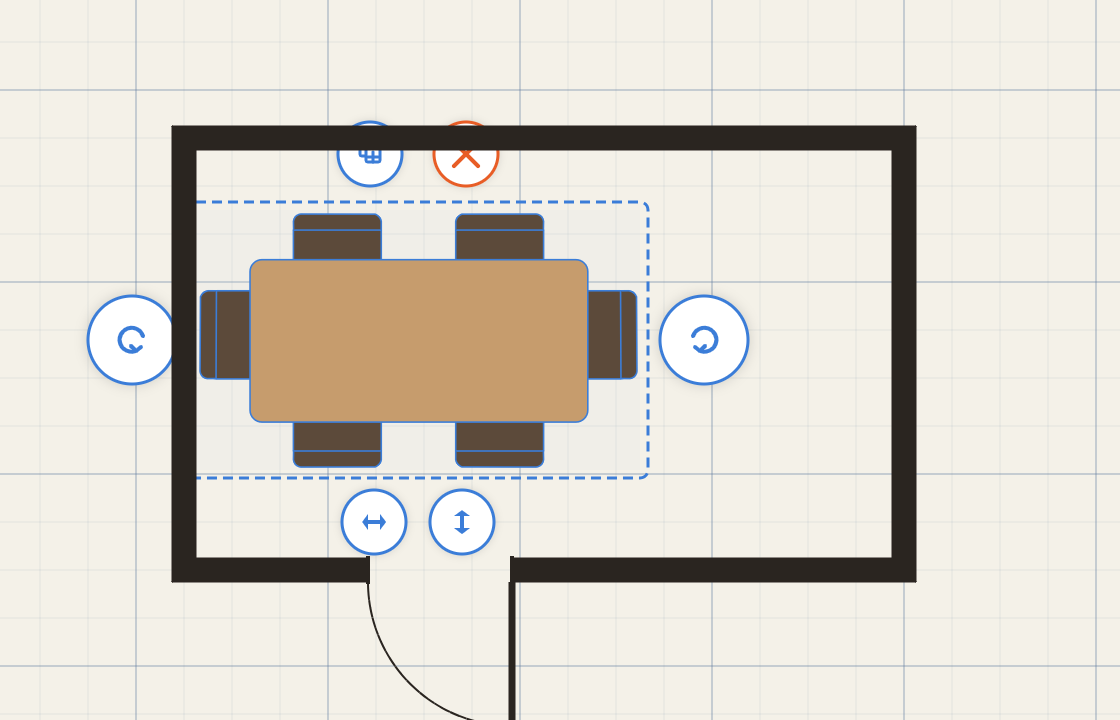
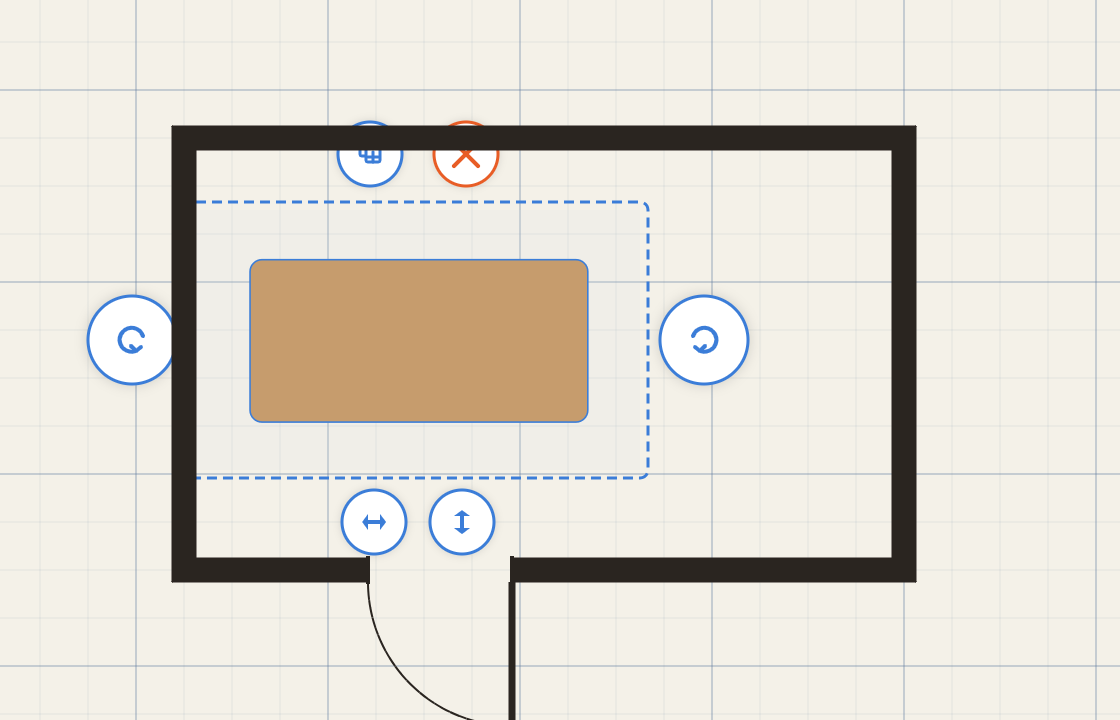
Select a Rectangle, Square or Round Table. Tap 🪑 Chairs to take the chairs away, and tap it again to put them back. With the chairs off, you can set a Dining Bench or loose Dining Chairs around the table.
Stools at a kitchen island
Select an Island. It comes with two bar stools, and the same 🪑 Chairs button takes them away or puts them back. With the stools off, you can set loose Bar Stools against the counter wherever you like.
Cabinets on a counter
Select a Counter or an L-Shape Counter. It has cabinets under the countertop and cabinets on the wall above it. Tap ⬇️ Base to take away the ones underneath, and ⬆️ Uppers to take away the ones on the wall, say to make room for a window. The countertop always stays. The words beside the buttons say what's left, like Countertop and base. The Sink Counter has an ⬆️ Uppers button only, because its cabinet holds the sink.
A hood over the stove
A new Stove comes with a range hood on the wall above it. Select the stove and tap 🔥 Hood to take it away, and tap again to put it back. You see the hood in 3D, not on the plan.
A mirror over a vanity
A Vanity and a Dual Sink come with a mirror on the wall above them. Select one and tap 🪞 Mirror to take it away, and tap again to put it back. You see the mirror in 3D, not on the plan.
An ottoman on an armchair
The Armchair with Ottoman comes with a footstool in front. Select it and tap 🦶 Ottoman to take the footstool away or put it back.
An umbrella on a patio table
Select a Patio Table (in Outdoor) and tap ☂️ Umbrella to put a shade umbrella through the middle of the table. Tap again to fold it away.
TV sizes
Select a TV or a Wall TV. Next to Size are four buttons: 43″, 55″, 65″ and 75″. That's the size of the screen measured corner to corner, the way TVs are sold.
One tree, three, or a row
Select a Maple Tree, Pine Tree, Palm Tree or Apple Tree in the yard. Next to Trees, tap 1 for one tree, 3 for a little group of three, or Row for a line of them. A row gets longer or shorter with the − and + buttons under it on the plan, and trees fill in as it grows.
A chimney on a fireplace
Select a Fireplace and tap 🧱 Chimney. Use − and + next to Rises to choose how far it stands above the roof. You only see the chimney in 3D, and only with the roof on.

Stockings on a fireplace
In the winter holidays, a selected Fireplace also has a 🧦 Stockings button. Tap it to hang stockings from the mantel, and tap again to take them down. You see them in 3D. The button is only offered during the winter season, but stockings you've hung stay until you take them down.
How low a light hangs
Select a Pendant Light, Chandelier or Ceiling Fan. The bar says Hangs at, with − and +. The number is the height of the bottom of the light above the floor. Lower it over a dining table, raise it over a walkway. It can't go above its ceiling, and a fan never drops below 7 ft. See Ceilings and lights.
Your own art in a frame
Select a Picture Frame. Tap 🖼️ Add your art and pick a picture, or take a photo of a drawing on a tablet. Choose a size with S, M or L. See Frame your own art.

Shutters on a window
Windows are not furniture, but they work the same way. Select a window on an outside wall and tap 🪟 Shutters. Tap the Shutters color button beside it and pick a circle. They appear on the outside, so you see them in 3D. See Windows.


Pieces that go beside or on other pieces
The Dining Chair, Dining Bench, Bar Stool, Microwave, Kitchen Sink and the ceiling lights are meant to go next to or on top of something else. When you drop one of these over a table or an island, it places there. It doesn't select the table underneath. To pick the table, switch to the Select tool.
Go inside: Garden Shed and Playhouse
These two have real walls and a door. In walk mode you can walk up to the Garden Shed or the Playhouse, click its door to open it, then walk in.