
Click Measure on the left rail. It has two tools.
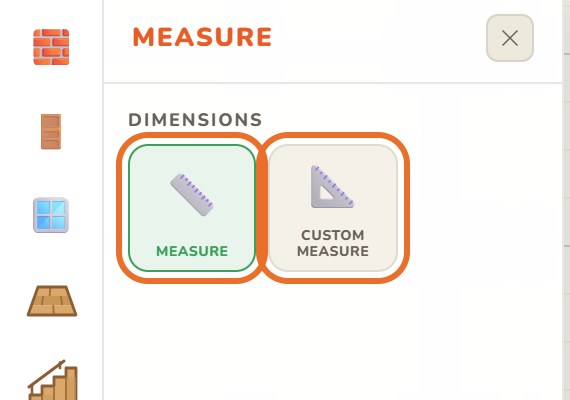
Measure: a wall in one click
Pick Measure.
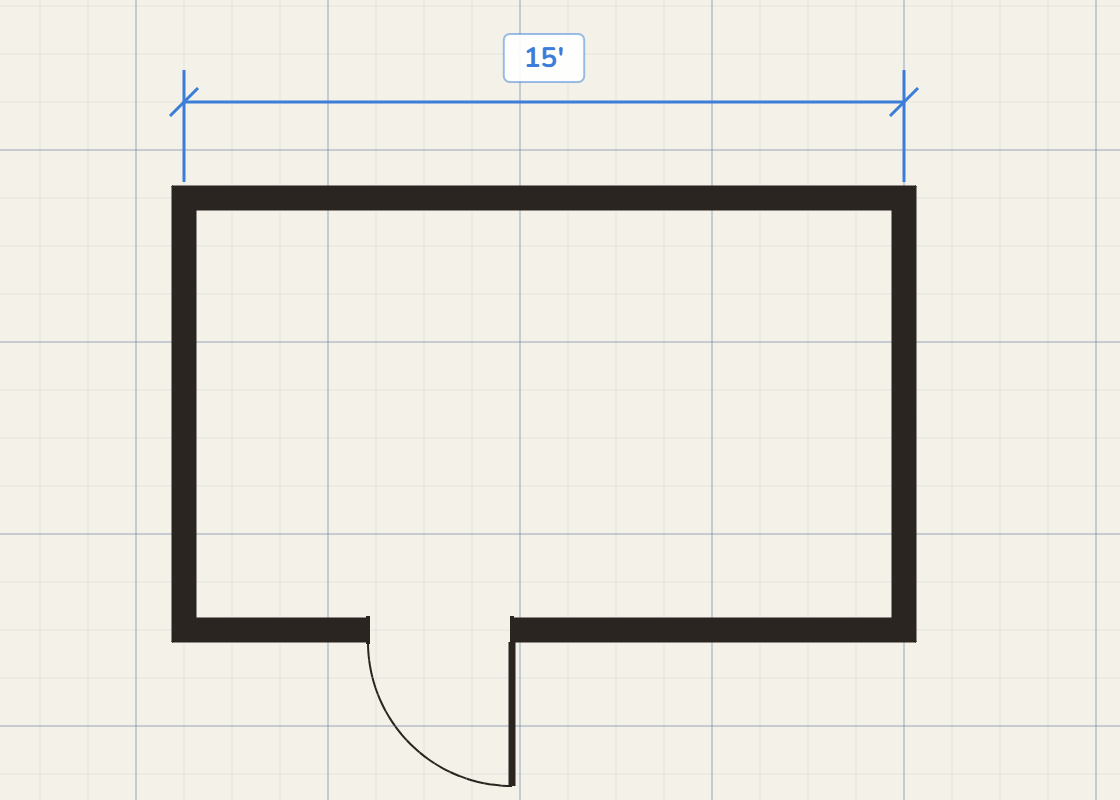
Click a wall. Its length appears beside it.
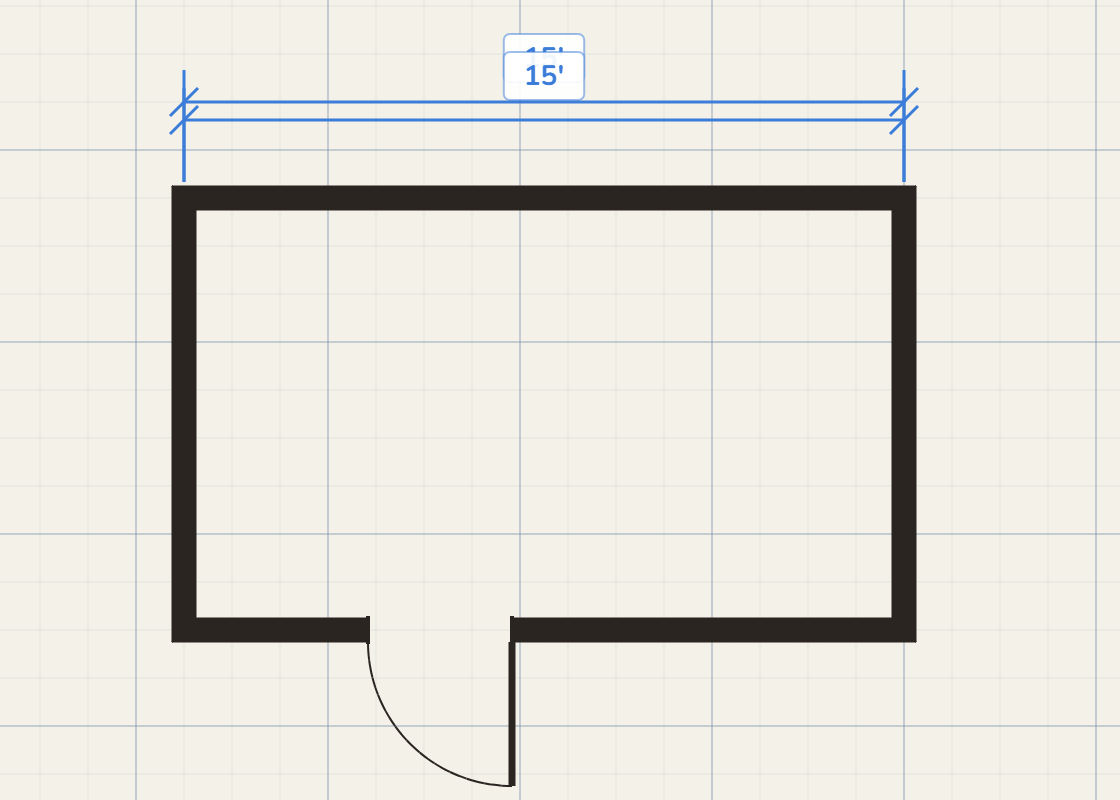
If other walls meet it along the way, you get two lines: one split at every place a wall meets it, and one for the whole length.
Custom Measure: any two points
Pick Custom Measure.
Click the first point. It has to be on a wall or a piece of furniture; it catches on edges and corners.
Click the second point, also on a wall or a piece of furniture.
Click once more to say where the measurement line goes, a little to one side so it doesn't sit on top of things.
A click on empty floor is ignored, so if nothing happens, click closer to a wall or a piece.
Straight or slanted
Custom Measure measures straight across to start with: the distance along one direction, which is what you want for a gap or a wall. For a diagonal, like corner to corner across a room, click Slanted in the bar at the bottom.

Reading the numbers
Measurements to a wall go to the middle of the wall. The real gap to the wall's face is a few inches less: 2″ for an inside wall, 3″ for an outside one.
Removing a measurement
Click it with the Select tool and press Delete.