
Step by Step builds a wall from a direction and a length instead of from two clicks. It's the easy way to make a wall exactly 12′ 6″ long.
| Tool | Where | Thickness |
|---|---|---|
| Step by Step (outside) | Walls › Outside | 6″ |
| Step by Step (inside) | Walls › Inside | 4″ |
Build a wall
Pick Step by Step from Walls › Outside for the outside of the house, or from Walls › Inside for walls between rooms.
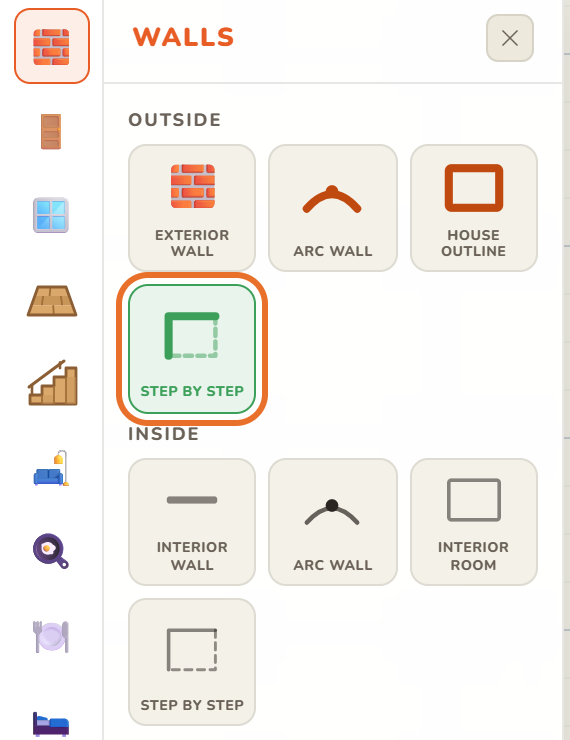
Click where the wall starts. It snaps to other walls and the grid, like the other wall tools.
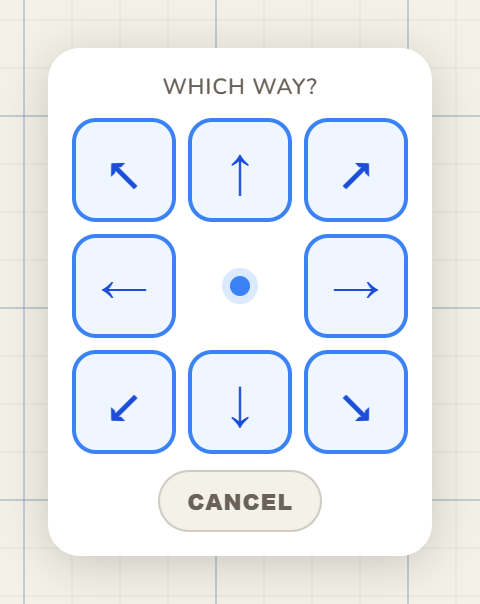
Choose which way. A picker asks WHICH WAY? It has eight arrow buttons: ↑ ← → ↓ for straight up, left, right and down, and ↖ ↗ ↙ ↘ for the 45° diagonals.
Choose how far. The picker changes to HOW FAR? and starts at 12′. Click − or + to change it 6″ at a time. Or type a length in the box and press Enter.
12'6"works, and so does a plain number of feet.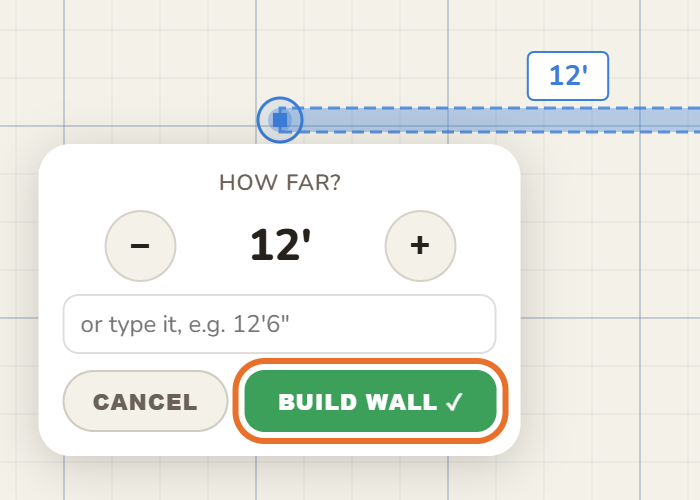
Click Build Wall ✓. The wall appears.
Changed your mind? Click Cancel and nothing is built.
Keep going
After each wall, the WHICH WAY? picker opens again at the end of the wall you just built. Pick another arrow and another length to keep going around a room. Now the picker has two new buttons:
↶ Undo wall takes back the last wall you built and lets you try that side again. You stay in the tool.
Done stops. Every wall you built stays.
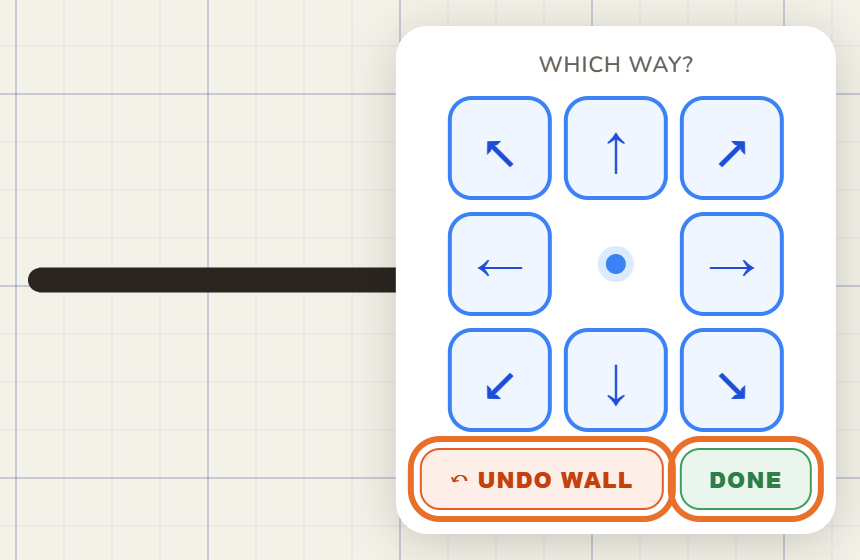
If a wall ends exactly on another wall, the chain stops there by itself. That's how you finish a room: the last wall lands on the first one.
Good to know
- The preview moves as you change the length. You can see where the wall will end before you build it.
- The arrows are screen directions. ↑ is toward the top of the plan.
- Each wall is a normal wall. Select it later to change it: see Changing a wall.
If something goes wrong
I built a wall the wrong length. Click ↶ Undo wall and pick the direction again. After you click Done, press Ctrl+Z instead.
The picker disappeared. Pressing Esc or Enter anywhere on the plan puts the tool away. Pick Step by Step again and click a new start point.