
Before you open one
Save what's on screen first. Opening a file replaces the house you're looking at, and anything you hadn't saved is gone. See Saving your work.
Open it
Click 📂 Projects on the right rail, under File.
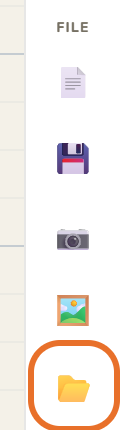
Click 📂 Open file
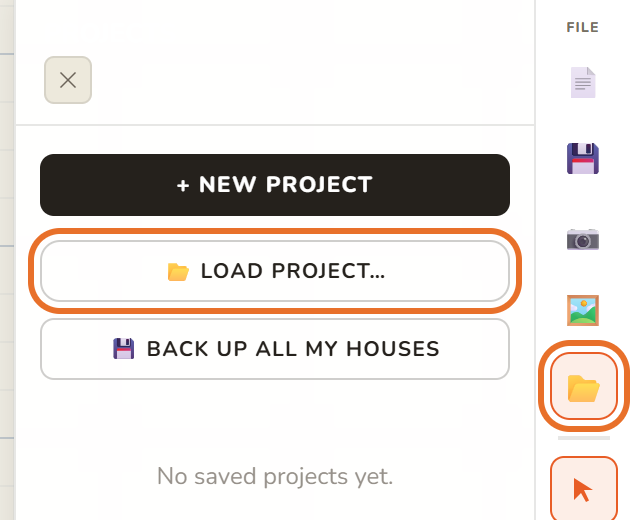
Pick the .tad file on your computer.
The house opens on screen and is saved into your Projects list.
The same house twice? A .tad file remembers which project it came from. If that project is already in your list on this computer, the file replaces it. To keep both, use Duplicate on the one in your list first.
Open a backup of all your houses
A file that ends in .tadpack is a backup made with 💾 Back up . Open it the same way: 📂 Projects, then 📂 Open file, then pick the file.
Every house in it goes into your Projects list, and a note in the panel says how many were restored. It won't replace newer work: if a house in your list is newer than the one in the backup, the backup's version is added as a copy with (restored) after its name. Opening the same backup twice doesn't make doubles.
If it was damaged
If part of the file was damaged, the app repairs what it can, opens the rest, and shows a note in the Projects panel saying what it fixed. If it can't be opened at all, the panel says so.
From a lesson
Some lessons have an Open the plan link instead. That opens the lesson's house straight in the app, with no file to find.